
Blue Yonder Workforce
Blue Yonder Inc.Business
4.53.20K Reviews
- Version
- 2026.1.0
- Installs
- 500.00K
- Age Rating
- Everyone
Screenshots
Our Review of Blue Yonder Workforce
 Analysis by Appyee
For employees whose workday depends on changing shifts, checking a schedule should not require a conversation, a printed notice, or a trip to a back office. Blue Yonder Workforce is a business app built around that simple need: it gives workers a mobile way to view schedules and submit time-off requests. I found its value less in flashy extras and more in reducing the small points of friction that can cause missed shifts or unclear requests.
The app comes from Blue Yonder Inc. and is free to download. It is rated for Everyone, runs on devices using Android or iOS version 10 or later, and has built a sizeable audience, with more than half a million installs. Its average rating sits at 4.5 from roughly 46 thousand ratings, alongside about 3 thousand written reviews. Those figures suggest that many users find the basic workflow dependable, although a workplace app can feel very different depending on how an employer has configured and adopted it.
How the everyday schedule workflow feels
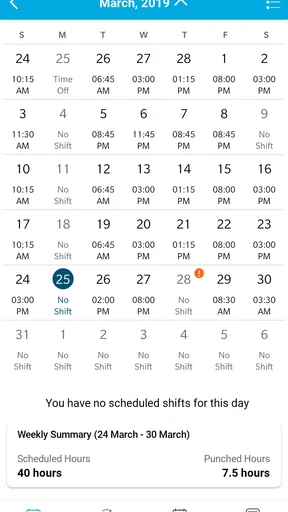
The most useful starting point is the daily schedule check. I would open the app before leaving home, confirm the next shift, and use that same visit to look ahead rather than only checking today. That habit matters for people working rotating hours, split responsibilities, or schedules that are posted and adjusted digitally. The app is most practical when treated as a regular checkpoint instead of something opened only after a colleague mentions a change.
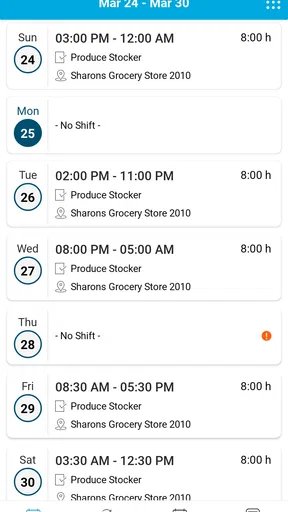
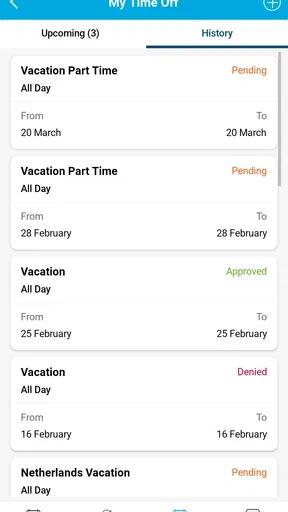
Blue Yonder Workforce focuses on two core tasks: seeing work schedules in real time and sending time-off requests. That narrow purpose is a strength. I do not have to sort through a general employee portal to find the information I need before work. The experience is easier to understand when I think of it as a personal schedule reference and request channel, not as a complete replacement for every workplace conversation or human-resources process.
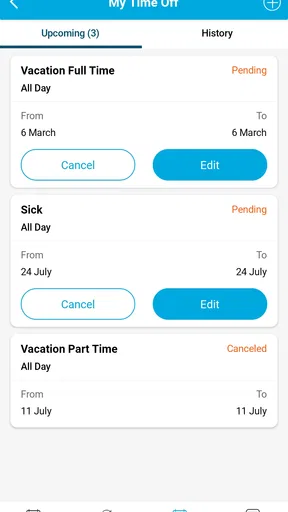
A realistic example is a retail or operations employee who finishes a late shift and wants to know whether the next day begins early. Rather than relying on memory, the employee can check the current schedule and then plan transport, childcare, or sleep. If a family commitment appears, the time-off request function provides a more orderly next step than sending an informal message to a supervisor. The request still depends on workplace approval, but the app gives the employee a clear place to begin.
That distinction is important: viewing a schedule is immediate information, while requesting time off is a workflow that may require someone else to act. I would not assume that submitting a request means the absence is approved. I would also keep the app’s schedule view as the source for checking the latest assigned hours, while following any employer-specific procedure for urgent changes, sickness, or same-day communication.
The app is particularly well suited to hourly employees who do not work a fixed Monday-to-Friday pattern. A standard calendar can show personal appointments, but it does not necessarily reflect assigned shifts. A messaging group can contain updates, but it is easy for a change to disappear among unrelated messages. A paper notice is familiar, yet it becomes awkward when a schedule changes after printing. Blue Yonder Workforce sits between those options by putting the work schedule and time-off action in the same mobile workflow.
What I would check before relying on it
Before making it part of my routine, I would confirm that my employer actually uses Blue Yonder Workforce for employee access and that my account details work. This is not an app I would download expecting it to create a schedule independently. Its usefulness comes from connection to an organization’s workforce system. If a workplace uses another platform, the app cannot replace that system simply because it has a similar purpose.
I would also check whether the schedule displayed matches what my manager or workplace has communicated during the first few uses. That is not distrust of the app; it is a sensible onboarding step for any work tool. Once the information consistently lines up, the mobile view becomes much more useful as a quick reference. If something looks unusual, I would resolve it with the appropriate workplace contact rather than guessing from the screen.
Another practical question is whether the phone itself is suitable for the job. The current version is 2026.1.0, and the minimum operating-system requirement is version 10. Anyone using an older device should check compatibility before planning around it. On a supported phone, I would keep the app easy to reach and avoid burying it in a folder. The benefit is greatest when checking a shift takes seconds, especially during a busy morning.
Settings and habits that make the app easier to use
Experienced use begins with consistency rather than complicated tricks. I would review the app’s available notification and account settings after signing in, paying attention to options related to schedule information and requests. I would not enable every alert automatically. Too many notifications can make important changes blend into ordinary phone activity, while too few can leave me dependent on memory. The right balance depends on how often my workplace changes schedules and how quickly I need to react.
A useful habit is to check the schedule at two different moments: once when planning the week and again before the next shift. The first check helps with transport and personal commitments; the second catches changes that matter immediately. This two-stage routine is more reliable than opening the app randomly or assuming that a schedule seen several days ago is still current.
I would also make time-off requests as soon as I know about a commitment, rather than waiting until the date feels close. Early requests give the workplace more time to respond and make it easier for me to notice whether the request has progressed. The app can organize the submission, but it cannot remove the need to monitor the result or follow up through the normal workplace channel when timing is critical.
One small but valuable practice is to separate “checking” from “acting.” First, I would review the relevant schedule period and make sure I am requesting the correct dates. Then I would submit the time-off request. This sounds obvious, but it reduces mistakes caused by jumping directly from a notification into a form. For employees with irregular shifts, confirming the exact workday is especially important because a date that looks free on a personal calendar may not be free in the employer’s schedule.
I would keep the app updated through the normal app-store process when updates are available, particularly because the current release is 2026.1.0. At the same time, I would avoid treating an update as proof that every workplace issue has been solved. Some problems come from account setup, schedule configuration, or approval processes rather than the phone application itself. Knowing that difference saves time when troubleshooting.
Privacy and device habits deserve attention too. Because this is a work-related app, I would use my own phone’s normal screen lock and avoid leaving schedule details visible on a shared device. I would also sign out or switch accounts carefully if more than one employee uses the same phone. These are ordinary precautions, but they matter more when an app contains personal work information and request history.
Faster patterns for repeat users
Once the basic workflow is familiar, speed comes from reducing repeated decisions. I would create a simple personal rhythm: check the upcoming schedule at the start of the week, review the next shift before finishing each day, and submit time-off requests immediately after confirming the dates. The app then becomes part of a predictable routine instead of another task competing for attention.
For workers with multiple responsibilities, I would pair the schedule check with one external planning action, such as adding the confirmed shift to a personal calendar or arranging transport. I would not use the personal calendar as a replacement for the workforce schedule; it is a planning copy, while Blue Yonder Workforce remains the place to verify assigned hours. This approach combines the app’s current work information with the tools I already use for daily life.
Another efficient pattern is to review several upcoming shifts in one sitting rather than opening the app repeatedly for isolated questions. I could identify early starts, late finishes, or clusters of working days and then plan meals, travel, and commitments around them. This is especially helpful for employees whose schedules vary enough that a single-day glance gives an incomplete picture.
Time-off requests benefit from the same deliberate approach. I would prepare the dates and reason according to workplace expectations before opening the request flow, then read the final summary carefully before submitting. The goal is not to rush through the form; it is to avoid reopening it because of a preventable date error. If the request is important, I would record the submission in my own notes and watch for the workplace’s response rather than assuming the process ends at the confirmation screen.
Shortcuts on the phone can help, but I would keep them modest and honest. Placing the app where it is easy to reach, using the device’s normal app-search habits, and allowing only useful notifications are realistic improvements. I would not expect unsupported automation to create approvals, modify schedules, or bypass workplace rules. The strongest “advanced” technique here is disciplined repetition: verify, plan, submit, and check the outcome.
Compared with a general calendar, this app has the advantage of being tied to the work schedule rather than relying on manual copying. Compared with email, it is more focused for routine schedule checks and time-off actions. Compared with a chat group, it is less dependent on finding the right message in a busy conversation. However, a manager’s direct message or phone call remains better for urgent, unusual, or same-day issues when an immediate human response is needed.
Where the app reaches its limits
The focused design also creates limits. Blue Yonder Workforce is not the right choice for someone who wants a broad project-management tool, a full personal calendar, or a general employee-information hub. Its usefulness depends on the employer’s deployment and the accuracy of the information connected to the account. A person without organizational access may find little value after installation.
I would also avoid treating the app as a complete communication system. A schedule view can show assigned work, and a request can start an approval process, but neither replaces a supervisor when a shift is missed, a safety issue occurs, or an unexpected absence needs immediate attention. The app is strongest for planned, repeatable actions; direct contact is stronger for exceptions.
There is a human limitation as well. Employees may check the app regularly, but a schedule can still be misunderstood if the workplace uses special terminology, location rules, or informal procedures. When a shift appears unfamiliar, I would confirm what it means rather than infer details from a short entry. The app can present the schedule clearly while the workplace still needs to explain local expectations.
Technical friction is possible whenever a work account, phone, and organizational system must all line up. If sign-in fails, information looks outdated, or a request does not behave as expected, I would first check the account and workplace process before repeatedly reinstalling the app. Reinstallation may help with a local problem, but it cannot correct an account permission issue or an employer-side configuration problem.
The rating of 4.5 and the large number of ratings indicate broad satisfaction, but I would interpret that in context. A workforce app is judged by whether it works for a particular employer’s setup, not only by its general reputation. Someone deciding whether to use it should ask: does my organization rely on it, do I need mobile schedule access, and will I use the request workflow consistently? Those answers matter more than popularity alone.
People who rarely change shifts may not gain much from installing another app, especially if a stable schedule is already available through a simpler workplace method. Likewise, employees who need detailed payroll, benefits, or team communication in one place may prefer a broader employee portal if their organization provides one. Blue Yonder Workforce makes more sense when schedule visibility and time-off requests are the recurring problems to solve.
My verdict after building a repeatable routine
Blue Yonder Workforce is a practical business app for employees who need a direct mobile view of their working hours and a structured way to request time away. I like that its purpose is easy to understand. It does not try to turn a schedule check into a complicated productivity system, and that focus makes it useful during the small moments when certainty matters most.
My recommendation is strongest for shift workers whose schedules change, employees who plan around approval-based time off, and anyone who has previously relied on scattered messages or printed schedules. The best results come from combining the app with a few repeatable habits: check upcoming shifts, verify the next workday, prepare requests carefully, and follow up when an approval matters.
I would skip it if my employer does not use the Blue Yonder workforce system, if I need a full workplace communication suite, or if urgent issues are likely to be handled outside the app. I would also keep a direct contact method available for exceptions. That is not a weakness unique to this product; it is the sensible boundary between a schedule tool and a human workplace process.
For the right employee, the free price and Everyone age rating make it easy to try, while support for Android and iOS version 10 or later keeps it accessible on many compatible phones. My final view is that this is a focused utility rather than an all-purpose work companion. If your daily problem is knowing when you work and submitting planned time off without unnecessary back-and-forth, it earns a place in your routine. If your needs go beyond that, a broader workplace platform will likely serve you better.
Verdict
Strengths of Blue Yonder Workforce
- Mobile access to shifts, tasks, and workforce updates from anywhere.
- Useful notifications can help employees stay informed about schedule changes.
- Supports workforce coordination across large teams and multiple locations.
- Can reduce reliance on paper schedules and manual communication.
- Designed for enterprise operations with structured workforce workflows.
Limitations of Blue Yonder Workforce
- Requires employer integration and an active Blue Yonder account to work.
- Some features may be unavailable depending on company settings or permissions.
- The interface can feel complex for users unfamiliar with workforce software.
- Performance may depend on device compatibility and the employer’s system setup.
- Frequent schedule alerts may become distracting if notification settings are not adjusted.
Similar Picks in This Category
View All
LinkedIn: Community & Network
LinkedIn3.8

Zoom Workplace
zoom.com4.1

Microsoft Teams
Microsoft Corporation4.6

Meta Business Suite
Meta Platforms, Inc.4.6

Webex Meetings
Cisco Systems, Inc.4.5

TeamViewer Remote Control
TeamViewer4.4
Frequently Asked Questions
What is Blue Yonder Workforce used for?
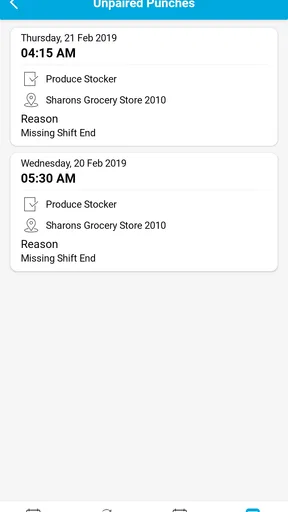
Blue Yonder Workforce is a workforce-management app designed to help employees and managers coordinate schedules, shifts, attendance, time-off requests, and workplace communication. In my experience, its usefulness depends heavily on how an employer has configured the platform. Some organizations may enable schedule viewing and shift swaps, while others may also include clock-in tools, task information, or notifications. It is primarily intended for employees of companies using Blue Yonder workforce-management services.
Can anyone download and use Blue Yonder Workforce?
The app may be available for download through the Android or iOS app store, but downloading it does not automatically provide access. You generally need valid credentials supplied by your employer and may have to enter a company-specific environment, server, or organization code. If your workplace does not use Blue Yonder or has not enabled mobile access, the application may not be useful. Contact your manager or company IT department for setup instructions.
How can I view my work schedule or request time off?
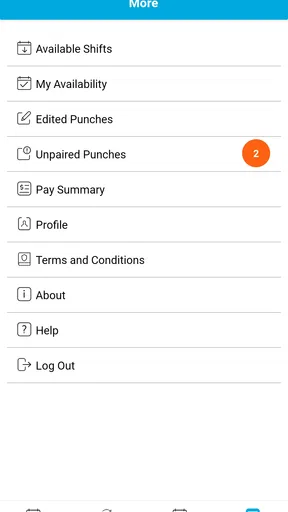
After signing in, available features normally appear according to your employer’s configuration. These may include viewing upcoming shifts, checking assigned locations, submitting availability, requesting vacation or other leave, and reviewing schedule changes. Approval workflows can differ between organizations, so a submitted request is not necessarily approved immediately. Always confirm the status inside the app and follow your employer’s official scheduling policy before missing or changing a shift.
Does Blue Yonder Workforce support shift swaps and notifications?
In workplaces where the relevant features are enabled, employees may be able to offer shifts, request swaps, accept open shifts, or communicate availability through the app. Notifications can also alert you about schedule updates, approvals, reminders, or messages. However, permissions and approval requirements vary considerably. Some companies restrict swaps to qualified employees or require manager approval, so the absence of a feature may reflect company settings rather than an app problem.
What should I do if Blue Yonder Workforce will not log in or show my schedule?
First, check your internet connection, confirm that you are using the correct employer-provided login details, and update the app if an update is available. If your organization uses a special company configuration, verify that it has been entered correctly. You can also try restarting the app or device, but avoid repeatedly guessing passwords because your account could be locked. For persistent access, scheduling, or timekeeping problems, contact your manager or workplace IT support.
